 TunaiPro
User guide › Members
How to create a member group如何创建会员分组Cara Membuat Kumpulan Ahli
7 steps · with screenshots7 个步骤 · 附截图7 langkah · dengan tangkapan skrin
Quick answer
How to create a member group in TunaiPro in 7 steps:
- Open the Member page
- Open the Member Group panel
- Tap + to create a new group
- Name the group and pick the match mode
- Scroll to Custom and tap Add
- Choose what to filter by
- Set the condition and value, then Save
快速答案
在 TunaiPro 中创建会员分组,共 7 个步骤:
- 打开会员页面
- 打开会员分组面板
- 点击「+」新建分组
- 输入分组名称并选择匹配方式
- 滑动到「Custom」并点击「Add」
- 选择筛选字段
- 设置条件与数值,然后保存
Jawapan ringkas
Cara Membuat Kumpulan Ahli dalam TunaiPro, 7 langkah:
- Buka halaman Ahli
- Buka panel Kumpulan Ahli
- Ketik + untuk kumpulan baharu
- Namakan kumpulan dan pilih mod
- Skrol ke Custom dan ketik Add
- Pilih medan penapis
- Tetapkan syarat dan nilai, kemudian Save
Open the Member page打开会员页面Buka halaman Ahli
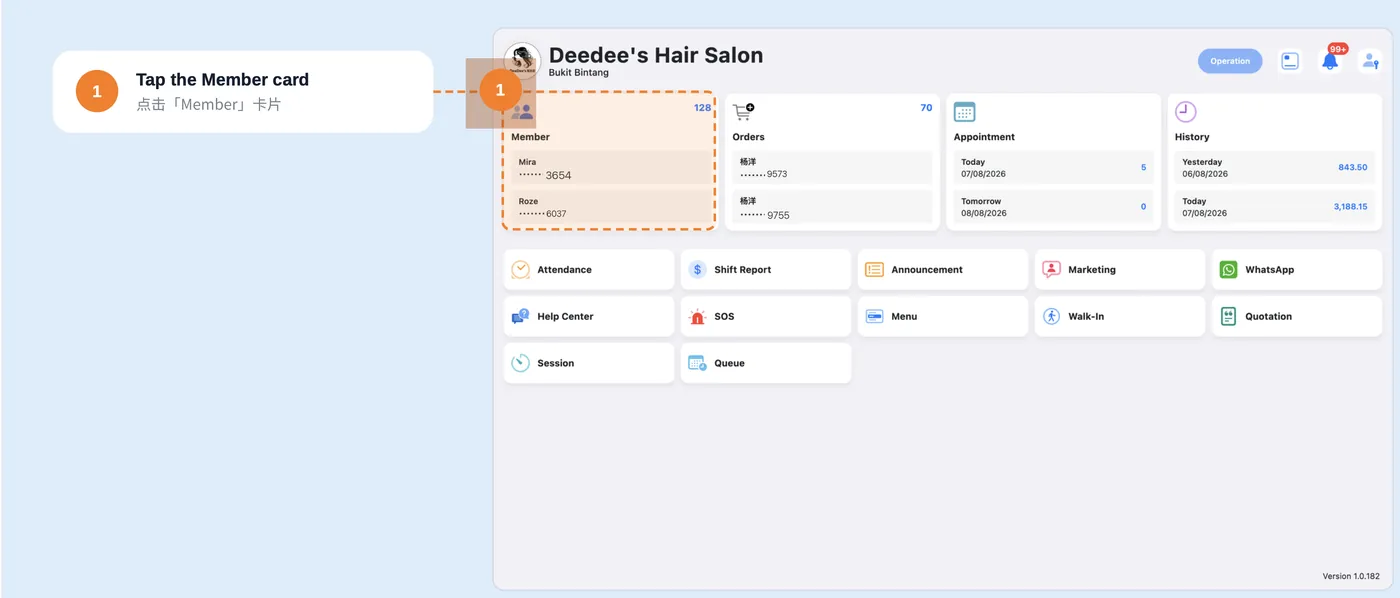
Tip From the dashboard, tap the Member card to open the member list.在主页点击 「Member」卡片,进入会员列表。Di papan pemuka, ketik kad "Member" untuk buka senarai ahli.
Open the Member Group panel打开会员分组面板Buka panel Kumpulan Ahli

Tip Tap the group icon at the bottom-left corner of the member list.点击会员列表左下角的分组图标。Ketik ikon kumpulan di sudut kiri bawah senarai ahli.
Tap + to create a new group点击「+」新建分组Ketik + untuk kumpulan baharu
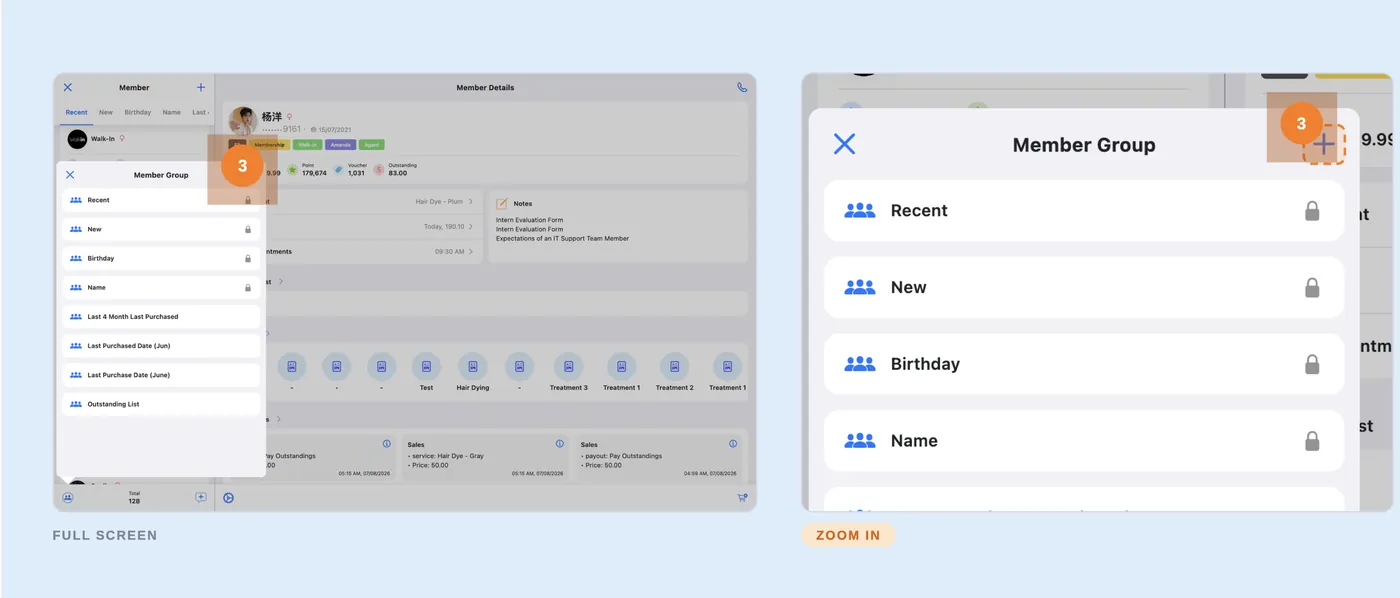
Tip Member Group lists your existing groups. Tap + at the top right to add a new one.「Member Group」会列出已有的分组,点击右上角的「+」新增分组。Member Group menyenaraikan kumpulan sedia ada. Ketik + di atas kanan untuk tambah.
Name the group and pick the match mode输入分组名称并选择匹配方式Namakan kumpulan dan pilih mod
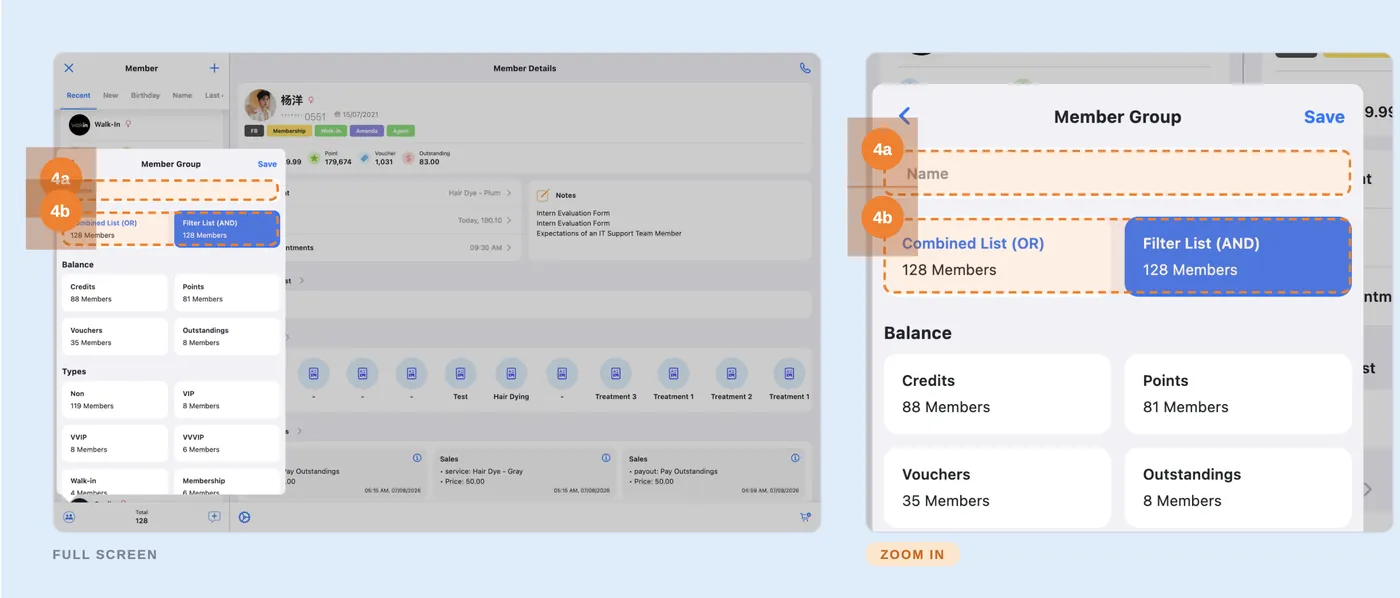
Tip Key in the group name. Combined List (OR) matches any condition; Filter List (AND) matches all of them.输入分组名称。「Combined List (OR)」符合任一条件即可,「Filter List (AND)」需符合全部条件。Masukkan nama kumpulan. Combined List (OR) padan mana-mana syarat; Filter List (AND) padan semua.
Scroll to Custom and tap Add滑动到「Custom」并点击「Add」Skrol ke Custom dan ketik Add
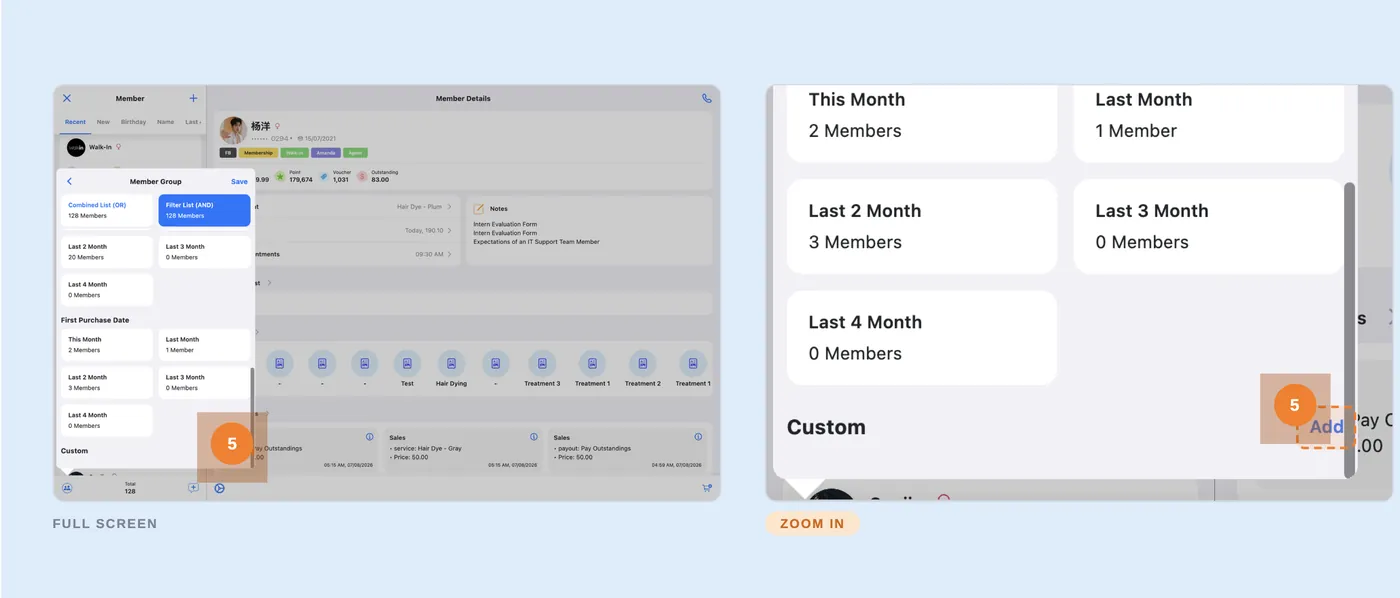
Tip Tap any ready-made filter tile to include it. For your own rule, scroll to Custom and tap Add.点击任一现成筛选条件即可加入。如需自定义规则,滑动到「Custom」并点击「Add」。Ketik mana-mana penapis siap untuk masukkan. Untuk peraturan sendiri, skrol ke Custom dan ketik Add.
Choose what to filter by选择筛选字段Pilih medan penapis
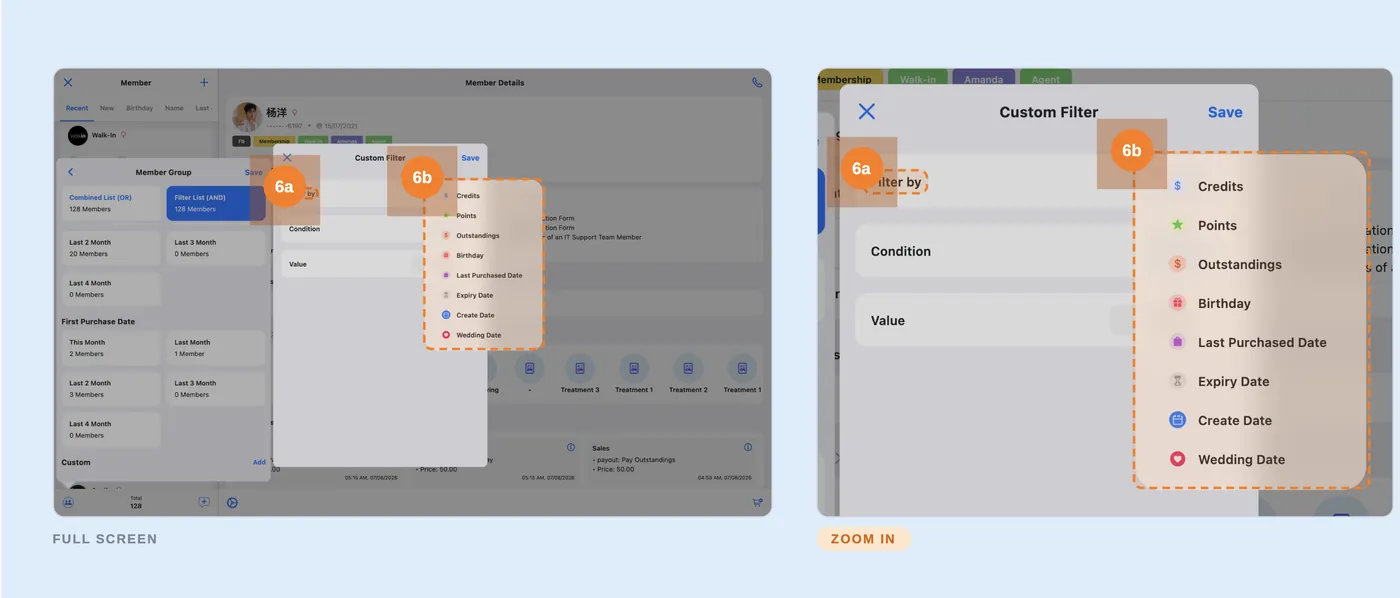
Tip Tap Filter by, then pick a field — Credits, Points, Outstandings, Birthday, Last Purchased Date, Expiry Date, Create Date or Wedding Date.点击「Filter by」,然后选择字段:Credits、Points、Outstandings、Birthday、Last Purchased Date、ExpiryDate、Create Date 或 Wedding Date。Ketik Filter by, kemudian pilih medan — Credits, Points, Outstandings, Birthday, Last Purchased Date, Expiry Date, Create Date atau Wedding Date.
Set the condition and value, then Save设置条件与数值,然后保存Tetapkan syarat dan nilai, kemudian Save
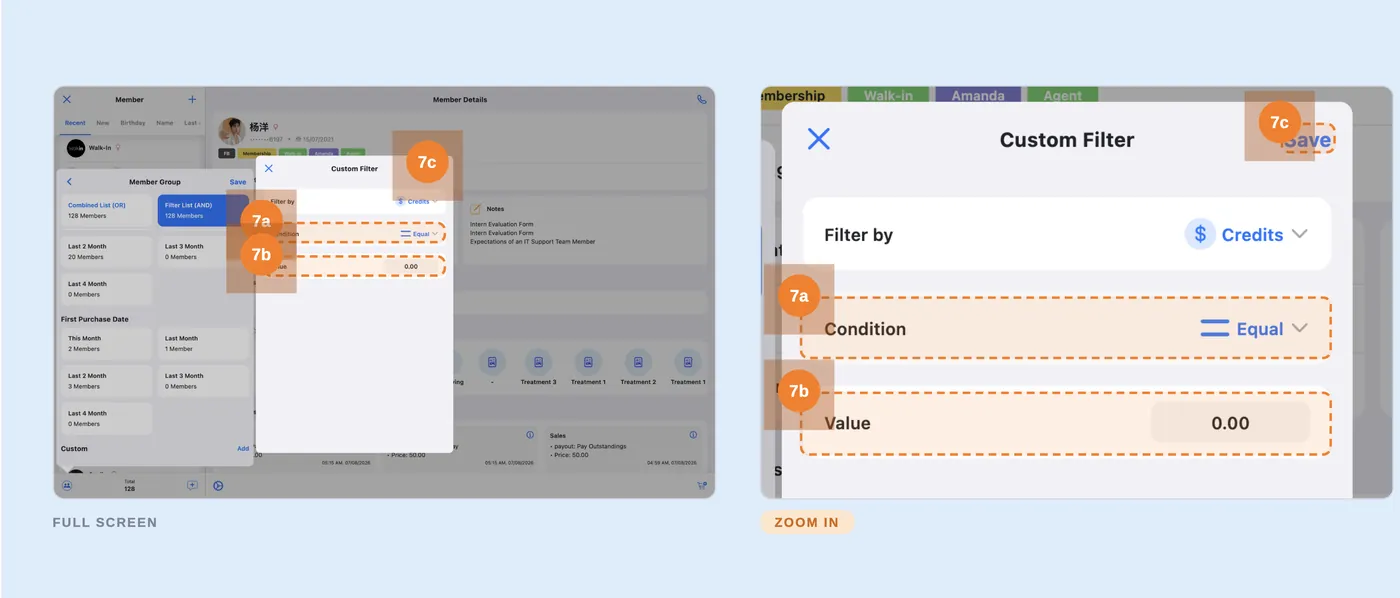
Tip Pick the Condition (Equal, more than, less than…), key in the Value, then tap Save. Save the Member Group as well to finish.选择条件(Equal、大于、小于等),输入数值,然后点击「Save」。最后再保存 Member Group 即完成。Pilih Condition (Equal, lebih, kurang…), masukkan Value, kemudian ketik Save. Simpan Member Group untuk selesai.
More guides更多教程Panduan lain
New to TunaiPro? See it on your own shop.第一次了解 TunaiPro?用您的店来演示。Baru dengan TunaiPro? Lihat dengan kedai anda sendiri.
Book a free demo预约免费演示Tempah demo percuma